
Checkboxes, WebDriver and CAPTCHA: A Practical Automation Guide
An educational case study explaining reliable checkbox automation, WebDriver signals, CAPTCHA boundaries and a safer human-in-the-loop login design.
Table of Contents
- Study Purpose and Responsible Use
- What I Built and What I Learned
- Ordinary Checkbox Versus Security Checkbox
- Reliable Playwright Checkbox Example
- Why Coordinate and Template Clicking Is Fragile
- Understanding navigator.webdriver
- What the claude.py Experiment Demonstrated
- Detect, Pause and Resume for CAPTCHA
- Replace Fixed Sleeps With State Transitions
- Secure Credential Handling
- Testing CAPTCHA in Your Own Application
- A Better Architecture for the Original Workflow
- Final Warning: Do Not Put Bypass Logic in Your Automation
Study Purpose and Responsible Use
This article is published only to study browser automation architecture, explain why several experimental approaches are unreliable and help developers design safer tests. It is not a guide for bypassing CAPTCHA, hiding automation from third-party websites or avoiding a provider's security controls.
Run automation only on applications you own or have explicit permission to test. Follow the website's terms, use official APIs and testing facilities where available, and leave CAPTCHA, two-factor authentication and account-recovery checks for the user to complete.
- ✓Use the examples only on owned, local or authorized staging pages
- ✓Do not use automation to bypass access controls
- ✓Do not conceal WebDriver to evade third-party detection
- ✓Keep security verification visible and manual
What I Built and What I Learned
I built a Python browser workflow with Playwright that reads an account, opens a visible browser, completes staged form fields, waits for page transitions and examines whether a checkbox-style challenge appears. I also experimented with DOM selectors, iframe inspection, screenshots and image matching.
The most important lesson was that a normal HTML checkbox and a security challenge are not the same engineering problem. A normal checkbox represents application state that a test is expected to control. A CAPTCHA is an access-control decision backed by server-side risk analysis. Clicking its visible square does not prove that the challenge has been completed.
- ✓Use semantic locators for application controls
- ✓Wait for observable state instead of sleeping for fixed periods
- ✓Treat CAPTCHA, 2FA and account recovery as manual checkpoints
- ✓Use provider APIs or test modes when automation is required
Ordinary Checkbox Versus Security Checkbox
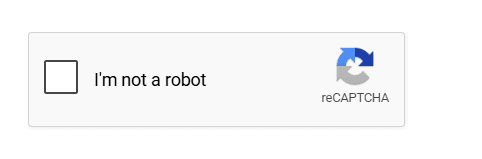
An ordinary checkbox is usually an input element connected to a label. Playwright can check it and then assert its state. A security widget may be hosted in a cross-origin iframe, create several nested elements and require a signed token that the server validates.
Broad selectors such as input[type=checkbox] or div[role=checkbox] can mistake consent controls, remember-me options and accessibility widgets for CAPTCHA. Detection should therefore be specific, and detection should lead to a pause rather than an automatic attempt to defeat the challenge.
| Control | Recommended automation | Verification |
|---|---|---|
| Owned form checkbox | Use label or role | Assert checked state |
| Consent checkbox | Use a specific accessible name | Assert saved preference |
| CAPTCHA or anti-bot challenge | Detect and pause | User or official test mode completes it |
| 2FA or account recovery | Pause and preserve the session | User completes the security step |
Reliable Playwright Checkbox Example
For a page you own, locate the control by its accessible label. The check operation is preferable to a coordinate click because it verifies that the target is a checkable element and leaves it in the requested state.
from playwright.sync_api import expect, sync_playwright

with sync_playwright() as playwright:
    browser = playwright.chromium.launch(headless=True)
    page = browser.new_page()
    page.goto("http://localhost:3000/preferences")

    newsletter = page.get_by_role(
        "checkbox", name="Email me product updates"
    )
    newsletter.check()
    expect(newsletter).to_be_checked()

    page.get_by_role("button", name="Save preferences").click()
    expect(page.get_by_text("Preferences saved")).to_be_visible()
    browser.close()
Why Coordinate and Template Clicking Is Fragile
My experiment captured the desktop, converted it to grayscale and used OpenCV template matching before clicking the centre of the best match. This can help with ordinary legacy desktop interfaces that expose no semantic selector, but it is fragile in browsers.
Display scaling, browser zoom, themes, localization, font rendering, responsive layout and a slightly changed icon can move or alter the target. A high similarity score only says that pixels look alike; it does not establish the element's identity, state or permission to interact with it.
- ✓Prefer role, label, test ID or stable application attributes
- ✓Use image matching only for authorized non-security UI when semantic access is unavailable
- ✓Validate screenshot dimensions and confidence thresholds
- ✓Never treat a pixel match as proof that a security challenge succeeded
What the claude.py Experiment Demonstrated
The second script, claude.py, used a persistent Playwright browser context, opened a traffic-checker page, waited for its domain field and allowed extra time when browser verification appeared. Persistent contexts can be useful in an authorized workflow because they preserve cookies and user-completed session state between runs.
That experiment also injected JavaScript to report navigator.webdriver as false. I have intentionally not reproduced that code here. Concealing the automation signal is not required for normal Playwright testing and should not be used to evade a third-party service's controls. The useful pattern is the visible browser, bounded initial wait, clear manual-verification message and longer resume wait.
- ✓Keep the persistent profile dedicated to one authorized workflow
- ✓Do not commit or share the profile because it may contain session data
- ✓Let the operator complete any third-party verification
- ✓Resume only after the expected form becomes visible
- ✓Do not inject scripts that disguise WebDriver
from pathlib import Path
from playwright.sync_api import TimeoutError as PlaywrightTimeoutError
from playwright.sync_api import sync_playwright

PROFILE_DIR = Path(__file__).with_name(".authorized-test-profile")
TEST_URL = "http://localhost:3000/traffic-checker-test"

with sync_playwright() as playwright:
    context = playwright.chromium.launch_persistent_context(
        user_data_dir=str(PROFILE_DIR),
        headless=False,
    )
    page = context.pages[0] if context.pages else context.new_page()
    page.goto(TEST_URL, wait_until="domcontentloaded")

    domain_input = page.get_by_label("Domain or URL")
    try:
        domain_input.wait_for(state="visible", timeout=15_000)
    except PlaywrightTimeoutError:
        input("Complete the visible verification, then press Enter...")
        domain_input.wait_for(state="visible", timeout=180_000)

    domain_input.fill("example.test")
    page.get_by_role("button", name="Check traffic").click()
    input("Press Enter to close the authorized test browser...")
    context.close()
Detect, Pause and Resume for CAPTCHA
A robust login workflow should first wait for the next expected application state. If the password field appears, continue. If a known challenge frame appears, notify the operator and wait for manual completion. This handles both branches without pretending the challenge can always be scripted.
After the user completes verification, resume only when the expected field or authenticated page becomes visible. Keep the browser visible and retain the same context so cookies and challenge state are not discarded.
from playwright.sync_api import TimeoutError as PlaywrightTimeoutError

def wait_for_password_or_manual_verification(page):
    password = page.locator('input[type="password"]').first

    try:
        password.wait_for(state="visible", timeout=5_000)
        return password
    except PlaywrightTimeoutError:
        pass

    challenge = page.locator('iframe[title*="captcha" i]').first
    if challenge.count() and challenge.is_visible():
        input("Complete verification in the browser, then press Enter...")

    password.wait_for(state="visible", timeout=300_000)
    return password
Replace Fixed Sleeps With State Transitions
A fixed five-second delay can be too long on a fast response and too short on a slow one. The better model is to define the states that can legally follow an action: password form, manual verification, authenticated page or an explicit error.
Playwright locators retry while waiting, and assertions describe the state the workflow needs. Use bounded timeouts and clear error messages so a failed run explains which transition never occurred.
- ✓Wait for visibility, enabled state or a URL transition
- ✓Model alternative outcomes explicitly
- ✓Use a long timeout only for a visible manual checkpoint
- ✓Capture a screenshot and page URL when a transition fails
Secure Credential Handling
The prototype reads email addresses and passwords from a CSV file. That is convenient for a local experiment but unsafe as a production credential store because plaintext files can be copied, backed up or accidentally committed.
Prefer OAuth or the service's official API. If a browser login is genuinely required, use an operating-system credential store or secrets manager, limit access and lifetime, avoid logging secrets and never commit account data or persistent browser profiles.
| Prototype choice | Production alternative |
|---|---|
| Plaintext CSV password | OAuth, credential vault or short-lived secret |
| Shared browser profile | Dedicated authorized profile with restricted access |
| Printed account details | Redacted structured logs |
| Automated security challenge | Manual verification or provider-supported test mode |
Testing CAPTCHA in Your Own Application
For an application you control, do not make end-to-end tests solve a production CAPTCHA. Configure the provider's documented test mode, inject a fake verifier in staging or mock the server-side verification response. Production must continue using real verification and secret keys.
This keeps tests deterministic and exercises the application's success and failure branches without training the automation to evade security. Add separate tests for missing tokens, rejected tokens, expired tokens and retry behavior.
A Better Architecture for the Original Workflow
The improved design separates form automation from security verification. One function loads a permitted account reference, another performs ordinary form steps, a transition detector classifies the next page and a manual checkpoint handles CAPTCHA, 2FA or recovery prompts.
This separation makes the script easier to debug and safer to reuse. It also avoids mixing ordinary checkbox helpers with security-specific selectors, which was a major source of false positives in the experimental version.
- ✓Launch a visible, supported browser
- ✓Fill only the ordinary form fields the workflow is authorized to automate
- ✓Wait for password, challenge, success or error states
- ✓Pause for all security verification
- ✓Resume in the same browser context
- ✓Record redacted diagnostics and close cleanly
Final Warning: Do Not Put Bypass Logic in Your Automation
Browser automation becomes reliable when it follows application semantics rather than screen coordinates. Playwright's locators, assertions and explicit state transitions are the strongest parts of the approach.
Do not copy CAPTCHA clicking, image-challenge solving, forced iframe interaction, navigator.webdriver concealment or similar bypass logic into your automation script. These techniques are unreliable, can put accounts and data at risk, and may violate the target service's rules.
When a third-party service requests verification, stop the automation and let the user complete it. For software you own, use approved test keys, mocks or staging configuration. The goal of this case study is to help developers recognize the boundary and avoid repeating unsafe experiments.
- ✓Do not automate CAPTCHA completion
- ✓Do not hide or falsify automation signals
- ✓Do not use forced clicks to defeat security widgets
- ✓Use manual verification, official APIs or authorized test modes
Frequently Asked Questions
Can Playwright check a normal HTML checkbox?
Yes. Use a semantic locator such as get_by_role with the checkbox's accessible name, call check(), and assert that it is checked.
Is clicking a reCAPTCHA checkbox the same as completing it?
No. The visible click can trigger additional challenges, and the server must validate a resulting token. A click alone does not establish completion.
Should I hide navigator.webdriver?
Do not hide it to evade a third-party site's automation controls. For software you own, inspect it in a dedicated test environment and use explicit test configuration instead of concealment.
How should automation handle an occasional CAPTCHA?
Wait briefly for the normal next state. If a recognized challenge appears, keep the browser open, ask the user to complete it, and resume after the expected page element becomes visible.
Is image matching a reliable way to automate browser controls?
It is less reliable than DOM and accessibility locators because scaling, zoom, themes and layout changes affect pixels. Reserve it for authorized non-security interfaces with no semantic automation surface.
How can I test CAPTCHA on my own staging site?
Use the provider's documented testing facility or mock the server-side verification adapter. Test accepted, rejected, missing and expired responses without solving a production challenge.
Related Articles
How Much Car Can I Afford in India? Salary and EMI Guide
A practical framework for choosing a car budget without judging affordability from the advertised EMI alone.
Tyre Upsizing Guide: Size, Speedometer and Fitment Explained
Understand tyre codes and compare an upsize safely before buying new tyres or wheels.
How to Calculate Percentage
Master percentage calculation with simple formulas, step-by-step examples, shortcut tricks, and real-life uses in marks, discounts, GST, and finance.
Percentage Increase Formula
Master the percentage increase formula with simple steps, multiple real-life examples, shortcut tricks, and applications in salary, business, marks, and finance.
Written & maintained by Aditya Singh
Aditya Singh is a software engineer and the founder of DevCalc, based in Uttar Pradesh, India. He builds and maintains every tool on this site with careful attention to accuracy and user experience. Read more about the author →
Last reviewed: 8 October 2026